You can determine myQ compatibility without buying a controller first. Identify the opener’s brand and model, check whether it has built-in Wi-Fi or a Powered by myQ logo, and then use Chamberlain Group’s current compatibility tool. Many Chamberlain, LiftMaster, and Craftsman openers made after 1993 can use a supported Smart Garage Control, but the learn-button color and model-specific exceptions matter. Genie, Overhead Door, Stanley, and Wayne Dalton openers may also qualify when the current official checker confirms the exact system.
30-second myQ compatibility flow
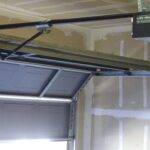
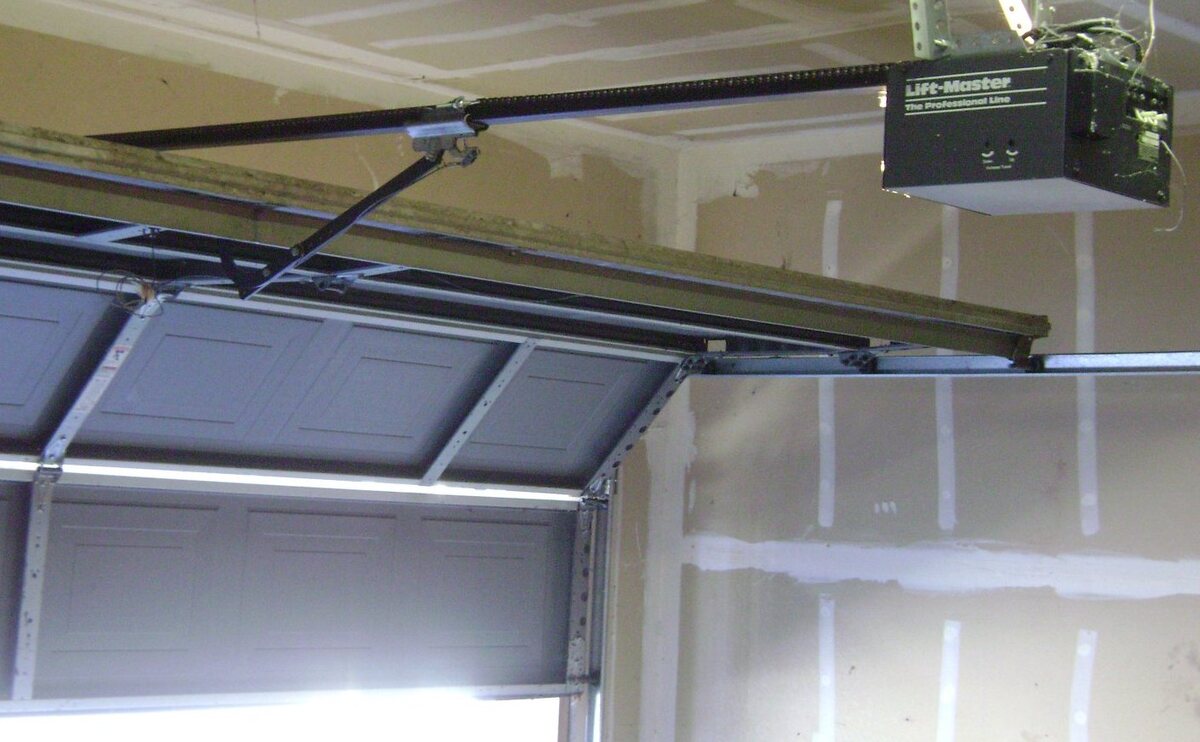
- Find the model number. Look on the opener motor housing, behind the light lens if the label is hidden, or in the product manual. Do not use the remote’s model number.
- Look for built-in indicators. A Wi-Fi symbol or Powered by myQ logo normally points to an opener with built-in connectivity. A myQ logo without a Wi-Fi symbol does not necessarily mean that the motor has Wi-Fi built in.
- Record the learn-button color. The button may be green, red/orange, purple/brown, yellow, or another color. Use the learn-button chart as an identifier, not as the final compatibility decision.
- Check the official tool. Enter the brand, opener model, and accessory path in the current Chamberlain Group compatibility portal.
- Confirm the door type and sensors. A supported controller still needs a compatible sectional-door setup, working photoelectric safety sensors, and a suitable Wi-Fi connection.
If the official checker does not identify the model, stop before purchasing. Ask Chamberlain Group or a qualified garage-door technician to verify the exact opener and accessory combination.
Compatibility lookup table
This table uses stable identification paths instead of a giant model list that can become stale. The official checker and current support documentation control when they disagree with an old model list.
| Opener family or identifier | Built-in myQ? | Smart Garage Control path | Extra hardware | Official source | Next step |
|---|---|---|---|---|---|
| Chamberlain, LiftMaster, or Craftsman with Wi-Fi symbol or Powered by myQ logo | Usually built in | Not normally required for the opener’s own Wi-Fi connection | Home Wi-Fi and myQ app account | Chamberlain requirements guide | Use the myQ app setup path for a Wi-Fi opener |
| Chamberlain, LiftMaster, or Craftsman made after 1993 with a supported learn-button family | Often no | May support Smart Garage Control | Controller, door sensor, and Wi-Fi | Smart Garage Control list | Match the exact button color and model exceptions |
| Genie, Overhead Door, Stanley, or Wayne Dalton made after 1993 | Usually no | May support a current myQ hub or control path | Brand-specific compatibility and sensor requirements | Chamberlain compatibility guide | Use the current compatibility tool; do not infer from age alone |
| Model not found, very old opener, or opener without standard safety sensors | Unknown or unlikely | Do not assume an add-on will work | Model-specific diagnosis or replacement | Official checker | Verify with support or consider a current opener |
| Specified exceptions such as LiftMaster 8010 or Chamberlain HD220/HD220C/PD220/PD222/LW260C | No supported path stated in the current exception note | Not myQ compatible through the listed path | Replacement or another supported system | Chamberlain accessory list | Do not order a hub based only on button color |
Built-in myQ versus an add-on controller
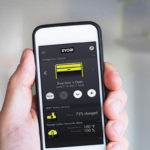
A Wi-Fi garage-door opener contains the network connection in the opener or its specified control system. Chamberlain’s current setup guidance tells users to check for a Wi-Fi symbol or Powered by myQ logo, install the current myQ app, and use the setup flow for the exact device. You still need a compatible home Wi-Fi network, the network name and password, and a myQ account.
An add-on Smart Garage Control or Smart Garage Hub is a separate device near the opener. It adds an internet connection to an opener that does not have built-in Wi-Fi, but it does not make every old motor compatible. The controller must communicate with the opener’s wall-control or accessory interface and use a door-position sensor. Chamberlain’s list also limits some accessories to sectional garage doors and standard safety-sensor behavior.
Do not confuse a wall control, remote, or receiver with the opener model. A remote may operate the door while the motor is too old or uses a protocol that the current myQ accessory does not support. Start with the motor model and the official compatibility path.
Learn-button color helps identify the generation
The learn button is useful because it narrows the opener’s radio and security family. A green, red/orange, purple/brown, or yellow button can point to different Chamberlain Group technologies and manufacturing periods. But color is not a complete compatibility guarantee. The same family can contain model exceptions, different safety-sensor behavior, or an opener whose accessory support depends on a specific wall control.
Use the GarageSanctum learn-button color chart to identify what you are looking at, then open the current Chamberlain checker. Photograph the motor label and button before you order. If the label and button imply different generations, use the model number and manufacturer support as the tie-breaker.
What to record from the opener label
Write down the complete model number, any suffix letters, the manufacturer name, the approximate manufacture date, and the color of the learn button. Note whether the opener has one or two light lenses, a Wi-Fi symbol, a Powered by myQ logo, or a separate wall-control module. Also record whether the door is sectional or another design and whether the safety sensors turn off or change power mode after the door closes. These details give the compatibility checker and support technician more useful information than a photo of the remote alone.
If the motor label is missing, do not guess from the remote frequency. Remotes can be replaced, paired, or shared across related opener families. The motor model and accessory interface are the relevant identifiers for a smart-control decision. Keep those notes with the opener manual for future troubleshooting.
Other brands and current compatibility
Chamberlain’s current requirements guide lists Genie, Overhead Door, Stanley, and Wayne Dalton openers manufactured after 1993 as compatible categories, but a category is not a model-level approval. Use the compatibility tool for the exact brand and opener. Older brands may have different wall-control terminals, sensor behavior, or discontinued accessories.
Do not use a third-party forum list as the final source. Forum posts can describe an older controller, a previous firmware state, or a setup that the manufacturer no longer supports. myQ hardware and cloud support can change, so keep the official tool link in the article and re-check it when the reader is ready to buy.
When replacement is the better path
An add-on controller is not always the best investment. Replacement is worth considering when the opener lacks standard safety sensors, has damaged wiring, has a model that the current checker excludes, or needs discontinued accessories. Replacement may also be the better path when the motor is noisy, the door is unbalanced, the force settings are unreliable, or the operator cannot pass a basic safety test.
Do not replace an opener to solve a door problem that needs door service. A broken spring, bent track, worn roller, damaged cable, or binding door can make any opener unsafe. Have the door system corrected before connecting a new smart controller or motor.
Wi-Fi and setup prerequisites
- Put the opener or hub where the manufacturer’s instructions can receive a stable home Wi-Fi signal.
- Have the current network name and password available during setup.
- Use the current myQ app version and the device’s official setup instructions.
- Keep the phone near the opener during pairing when the support guide recommends it.
- Confirm that the door-position sensor is mounted, aligned, powered, and reporting closed/open states correctly.
- Keep the opener’s wall control and photoelectric safety sensors installed and functional.
myQ control depends on the opener, the accessory, the home network, the app, and the cloud service. A compatible motor can still show offline if the Wi-Fi signal is weak, the router changed, the app account is incomplete, or the hub and door sensor are not paired correctly.
Troubleshoot “compatible but not connecting”
- Re-check the model number and the selected accessory path in the official compatibility tool.
- Confirm that the hub has power and is close enough to the opener for setup.
- Check the door sensor battery, alignment, and mounting.
- Check the home Wi-Fi name, password, band requirements, and signal at the garage.
- Re-run setup after a router or Wi-Fi-name change instead of assuming the opener failed.
- Check the current Chamberlain support article for the exact device status before resetting the opener.
Never bypass photo eyes, short the wall-control terminals, defeat a safety stop, or remove a wired wall control to force compatibility. If the door will not reverse on an obstruction test, stop using remote control and arrange garage-door service.
Privacy and cloud considerations
myQ control is a connected service. Review the current app permissions, account recovery options, device-sharing settings, and subscription or integration terms that apply to your region. Use a strong account password and keep the app and router current. If remote access is no longer needed, remove shared users and disconnect the device through the supported account controls rather than cutting wires.
Related GarageSanctum guides
- Garage door opener learn-button color chart
- How to use a smartphone as a garage door opener
- Garage door opener apps
- Universal garage door remote compatibility
- Best garage door opener buyer guide
Source notes
Checked September 20, 2026. Compatibility rules were re-checked against Chamberlain Group’s compatibility portal, myQ requirements guide, Smart Garage Control compatibility list, and Security+ 2.0 accessory list. Compatibility and cloud support can change, so use the official checker for the exact model before purchasing.